
dsh-web
zhu1090093659/dsh-webDeepSeek Harness(DSH)Web 插件聚合生态包 · 一切皆插件,创意工坊分发(dsh-market.com)

deepseek harness background-image plugin, built by DS and GPT
English | 简体中文
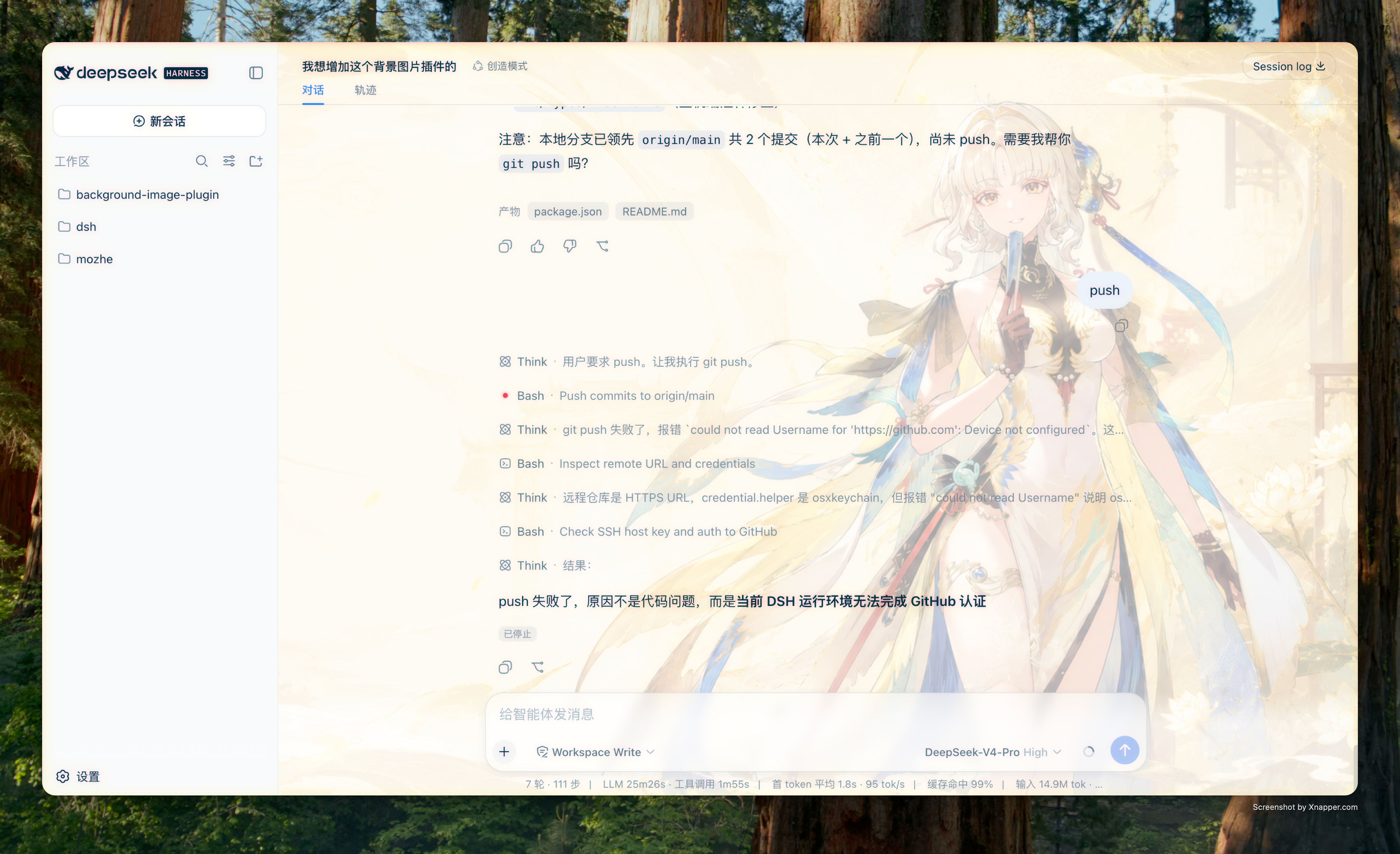
A background image plugin for DeepSeek Harness (DSH), for both the Web UI and the Desktop app: set a web image, local image, or preset gradient as the interface background, with image opacity, display scope, frosted-glass blur, per-region opacity, and chat-content offset for a more immersive interface.
Adapted to DSH 0.2.1+ (the modern Settings / Plugin Manager slots) and to DeepSeek Harness Desktop.
http(s)://), local images (absolute paths), and data:image/ data URLsConfig and are persisted by the DSH settings system in the profile patch; they survive a page refresh or a DSH restart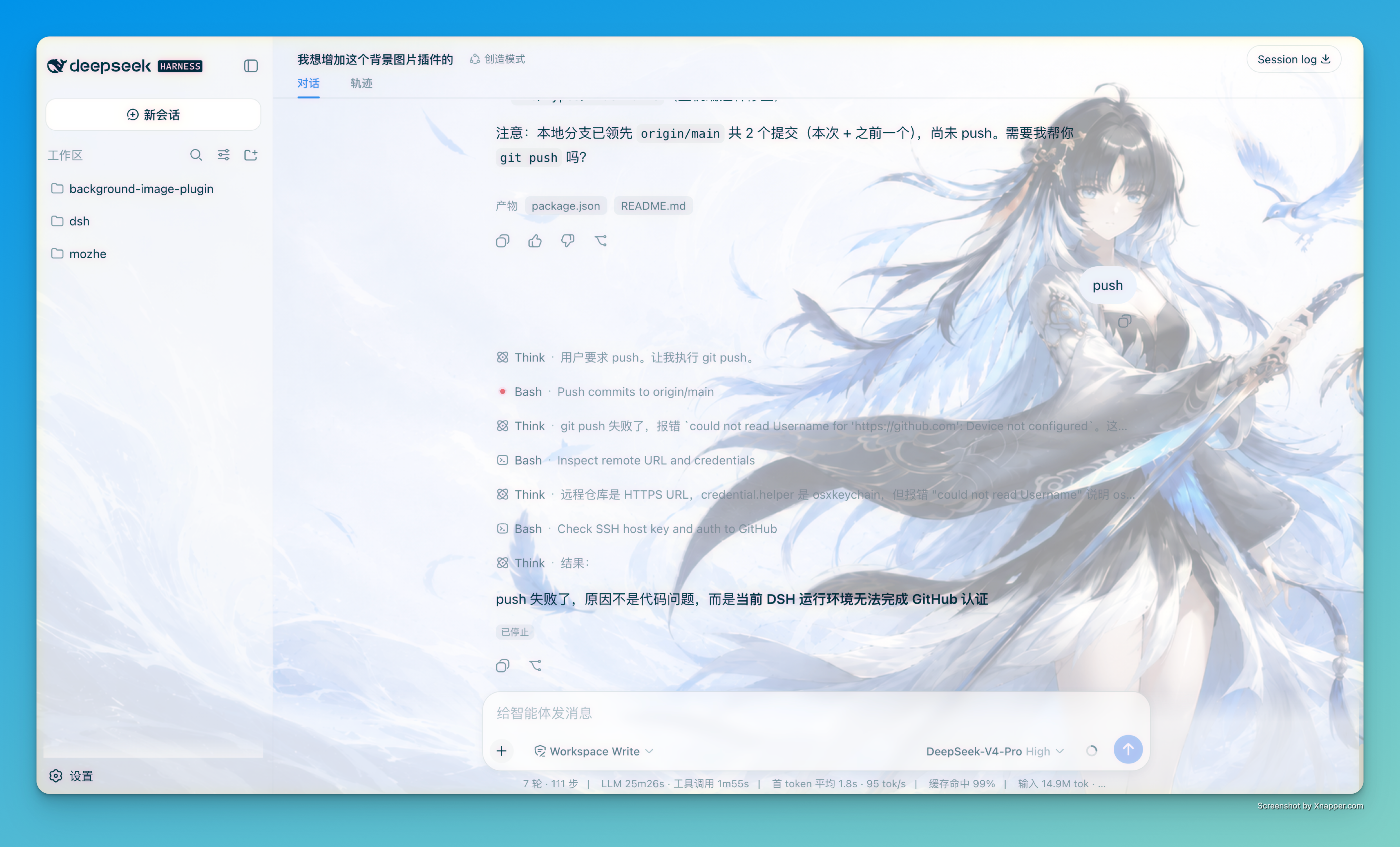
Open the Plugins panel from the sidebar's panel list, then add the plugin from the local directory or from npm. The Desktop app uses the desktop profile, for example:
npx @deepseek-ai/dsh plugin --profile desktop add \
  dsh-plugin-background-image@file:/path/to/background-image-plugin
npx @deepseek-ai/dsh plugin --profile <profile> add \
  dsh-plugin-background-image@file:/path/to/background-image-plugin
For example:
npx @deepseek-ai/dsh plugin --profile web add \
  dsh-plugin-background-image@file:/Users/your-name/projects/background-image-plugin
When the Plugin Manager installs a directory as a link (link:… in the profile's package.json), run pnpm install once inside that directory so the plugin can resolve its @deepseek-ai/schemastery dependency; otherwise the Host reports ERR_MODULE_NOT_FOUND and the plugin stays inactive. Installing the published package from npm installs the dependency automatically.
npx @deepseek-ai/dsh plugin --profile <profile> add dsh-plugin-background-image
Start DSH with the same profile after installation and the plugin will load. Installing a new bundle can activate through HMR; replacing an already installed package requires a restart.
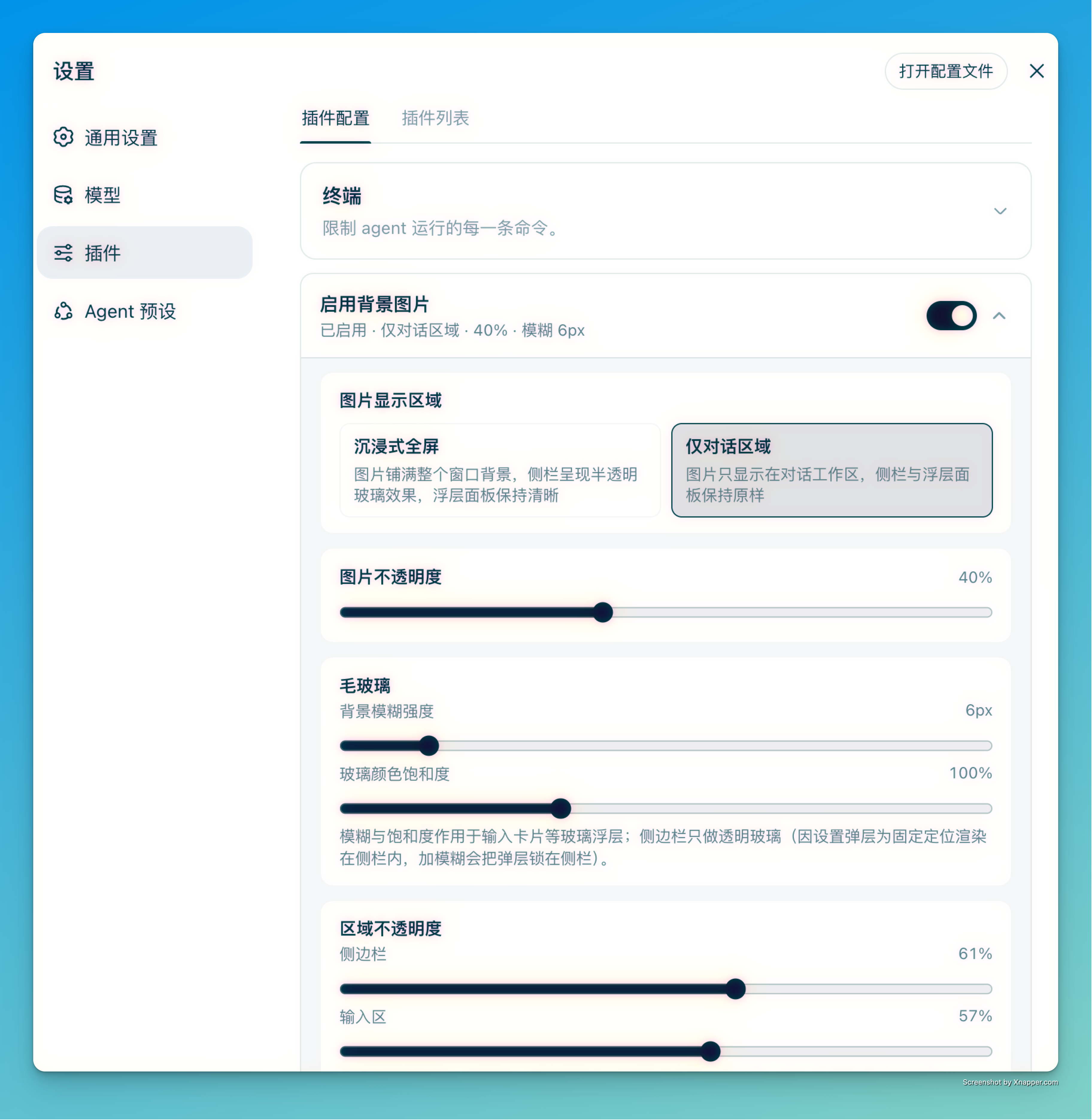
Both entry points use the same plugin Config form, so changes made in one are reflected in the other. The top-level settings page is registered through settings.section; the row entry uses the modern plugins.row.config slot (the successor of the old settings.plugin.item settings card).
The settings live in the plugin's Config and are written by the DSH settings service into the profile patch (~/.dsh/profiles/<profile>/cordis.patch.yml) as an override of the row the bundle inserts:
- id: dsh-plugin-background-image
  config:
    enabled: true
    mode: fullscreen
    opacity: 0.9
    image: https://example.com/background.webp
    blur: 12             # frosted-glass blur (px, sidebar & composer card, 0 = off)
    conversationBlur: 0  # independent conversation blur (0–48 px)
    conversationOpacity: 0 # conversation opacity (0–1, both display modes)
    saturation: 1.4      # glass color saturation (1 = as-is, >1 = more vivid)
    sidebarOpacity: 0.5  # sidebar opacity (fullscreen only, via the pseudo-element glass)
    composerOpacity: 0.72 # composer opacity
    contentOffset: 120   # chat content horizontal offset (px, positive = right, negative = left)
Omitted fields use the schema defaults. settings.yaml is not used by this version; values saved by 1.2.x under the old background-image namespace are not read — set them once in the new config page after upgrading.
Browsers cannot load
file://resources directly due to security policies, so the plugin registers a read-only file-serving route on the host (GET /plugins/background-image/file?path=<absolute-path>) that serves the local image referenced by the configuration to the page over same-origin http. The route only accepts loopback origins and only serves the exact path currently referenced by theimagefield ("reference-as-authorization", the same model as the officialsession.attachment). If the image file is moved or deleted, the background stops working and the path must be set again.
@deepseek-ai/schemastery: host-side Config schema definition and validation.react (peer, optional): client-side settings UI.node:child_process, node:fs/promises, node:path.window.__DSH_HOST_PATHS__.pathFor).| Platform | Required command |
|---|---|
| macOS | osascript (bundled with the system) |
| Linux | zenity or kdialog (either one is enough) |
| Windows | powershell |
When none of these is available, you can still type the local absolute path manually.
This plugin works by overriding DSH theme tokens and injecting CSS, which changes the global interface appearance. Keep the following in mind:
--dsw-alias-bg-base and --dsw-specific-sidebar-fill to transparent and draws the image once in body::before (position: fixed). This is what makes the same image appear continuously behind the sidebar, center column, detail column, and bottom row on both the Web UI and the Desktop window — including macOS Desktop, where the window itself is transparent and uses native vibrancy. Elements that paint --dsw-alias-bg-base directly (for example some tool panel surfaces) become see-through to the image; elements that use --dsw-alias-bg-layer-* / --dsw-alias-bg-overlay (menus, the Settings panel, floating dialogs) stay opaque.[class*="_sidebarCol"], [class*="_centerCol"], [class*="_frame"], [data-rightbar-col], [data-shell-bottom], [data-phase][class*="_root"], [data-composer-seat], [class*="_viewArea"], [class*="_composerStack"], and [class*="_composerHero"] rather than a version's CSS-Module hash. A future DSH renaming of these semantic suffixes or attributes can still break the corresponding effect; the token-based image itself keeps working.<sidebar column>::before (an absolutely positioned overlay carrying the translucent fill and backdrop-filter), and the sidebar's content root is made position: relative so it paints above the glass. This keeps the sidebar from becoming the containing block for position: fixed popovers.!important overrides.Update to the latest version:
npx @deepseek-ai/dsh plugin --profile <profile> add dsh-plugin-background-image@latest
Uninstall the plugin:
npx @deepseek-ai/dsh plugin --profile <profile> remove dsh-plugin-background-image
settings.plugin.item / settings.register APIs and is not compatible with 0.2.1+.DeepSeek Harness(DSH)Web 插件聚合生态包 · 一切皆插件,创意工坊分发(dsh-market.com)
把回答做成一页可视化 HTML:模型只写简短的 Markdown 草稿,随包附带的 `am` 命令行生成页面,支持流程图、时序图、树、时间线、ER 图、表格和提示框。
在 dsh 里装上这个插件即可,无需登录、注册或填 API Key,就能使用包括 Muse Spark 1.3、MiMo V2.6 在内的前沿模型——完全免费,不限量。 All you do is install this plugin in dsh: no login, no sign-up, no API key — the frontier models are just there, Muse Spark 1.3 and MiMo V2.6 among them. Completely free, with no usage cap.

