
dsh-web
zhu1090093659/dsh-webDeepSeek Harness(DSH)Web 插件聚合生态包 · 一切皆插件,创意工坊分发(dsh-market.com)

DSH(DeepSeek Harness)流程图管理插件:浏览 Archify 业务流程图目录、按 Git 附注标签阅读历史版本、保存版本。A workflow-diagram manager plugin for DSH.
English | 简体中文
Read your project's documents and diagrams, then make a room you can walk through, read in and share.
SpecDev Workbench is a plugin for DeepSeek Harness (DSH), an AI agent workspace. It combines a conventional document and Archify diagram reader with furnished 3D rooms. Ask the AI to arrange a forest reading cabin or ceramic workspace around your materials, enjoy rain and ambient sound, and export a room for others to explore.
A “business” here means one feature or subject in your project, such as sign-in or a reading list. Its registered materials can have an independent room.
Try the offline room · Install the plugin
Download the HTML file and open it in a browser; this is a file download, not a hosted demo. The room and selected documents/diagrams work offline. Source links still need a network connection and, for private repositories, access permission.
Real screenshots of furnished sample rooms with fictional project materials:
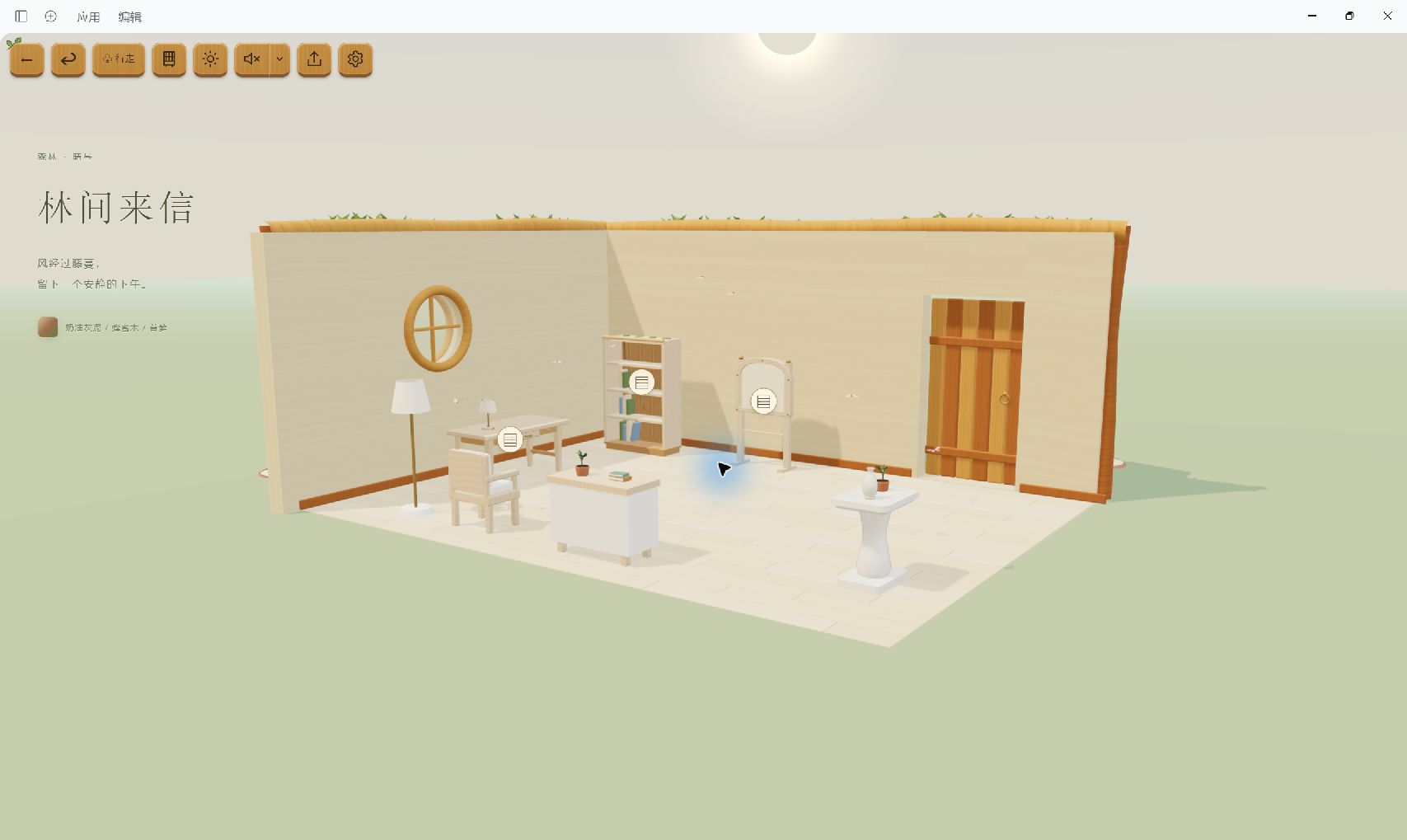
A forest cabin with warm wood, a reading area and decorations across the room.
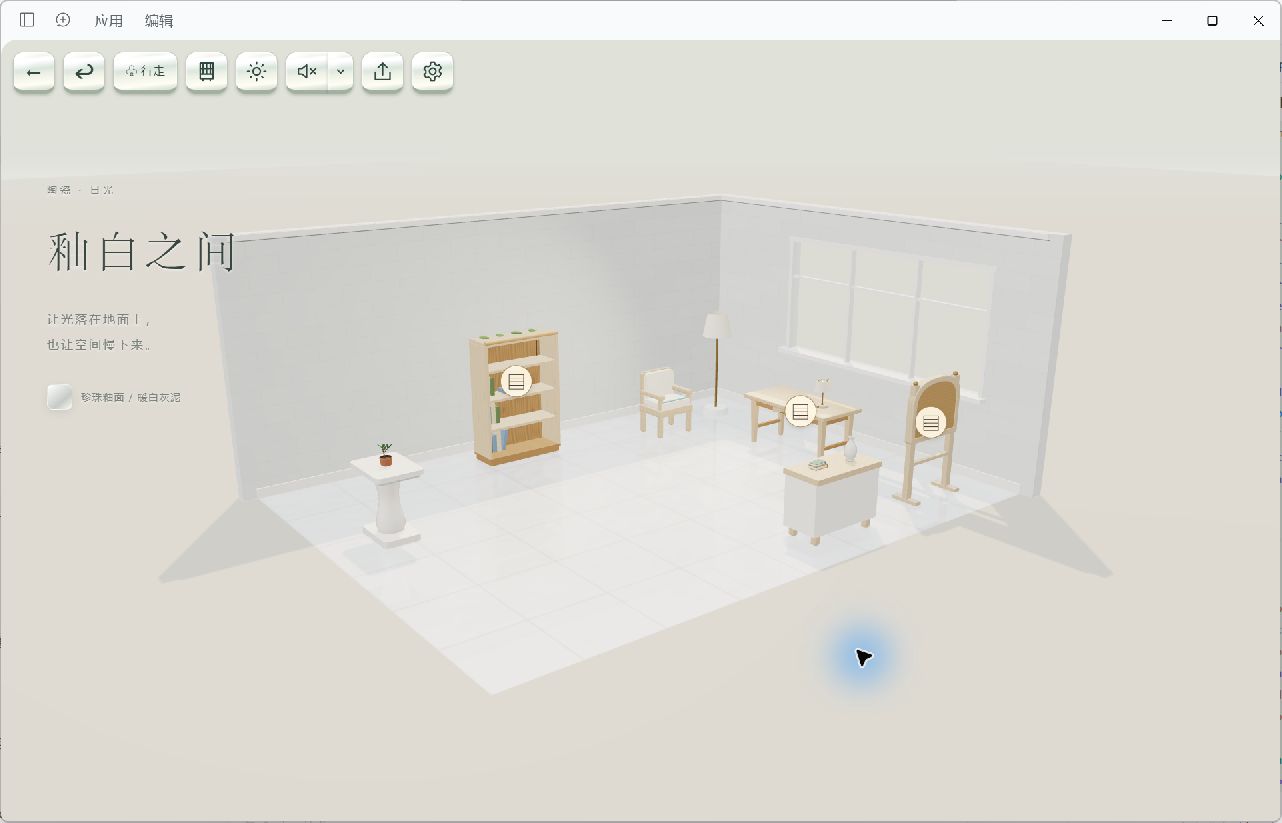
A ceramic room with glazed surfaces, translucent windows and separate work and display areas.
The skills are written instructions that help the AI use the plugin's formats and validation tools. They do not automatically turn source code into correct project documentation or guarantee that every AI model will produce an attractive room.
You need DSH installed and able to open a workspace first. Start with the official DSH project and its user documentation. This plugin's room, reading and export experience has been verified on Windows with DSH Desktop and Web 0.2.0-rc.2; other hosts and platforms are not covered by that result.
Current plugin version: 0.2.3 · Release and checksums · Exact npm version
Open DSH once to finish its initial setup. Save your work and exit through its menu or tray; confirm the background instance has ended. Use that installation's bundled CLI. Keep the data root DSH already uses: if you never set DSH_HOME, leave it unset. You do not need to build the plugin from source.
Run this in PowerShell, replacing only the installation directory:
$DesktopDir = 'C:\Apps\DSH' # Replace with your actual DSH installation directory
& "$DesktopDir\resources\runtime\cli\bin\dsh.cmd" plugin --profile desktop add '@pioneer_zmc/dsh-workbench@0.2.3' '--registry=https://registry.npmjs.org/'
& "$DesktopDir\DeepSeek Harness.exe"
Open SpecDev Workbench in the sidebar. It appears in the central panel; Return to chat restores your conversation.
Finish the host's initial setup, then stop the Web instance. Use its own dsh CLI and the same data root:
dsh plugin --profile web add @pioneer_zmc/dsh-workbench@0.2.3 --registry=https://registry.npmjs.org/
Restart that instance. The sidebar entry opens the workbench in a new tab, keeping the chat available. For hosts launched through npm or a source checkout, see the matching CLI invocation in the installation guide.
Back up your custom plugin configuration and record the installed package name before upgrading. Use the matching Desktop/Web command above for the current npm identity. Reinstalling an already installed version can be skipped by the host; historical identities need separate migration care. Read upgrades, local package installation and data roots before removing anything. Keep your existing project data.
Choose a Git project in DSH. Select the repository root as the workspace, then select that project in SpecDev Workbench. If the list is empty, create a DSH workspace and refresh it. Materials are registered under docs/specdev; existing registered materials can go straight to step 3.
Prepare and register a subject's materials. In that project's chat, ask the AI to use specdev-business. Confirm the target repository, allowed branch and subject; provide requirements or existing documents. For example:
Use specdev-business to prepare and register documentation and a workflow for a “Reading list” subject in the current Git project. The proposed feature lets a user add a book and mark it as read. Work only on design materials, without implementing the feature. Confirm the repository and allowed branch with me, and ask about unclear requirements. Validate the materials and give me the workbench entry to review.
Replace this example with your own subject and requirements. The AI may need decisions before it can finish. Existing documents can remain at their original repository paths when registered; proposed designs must be marked as such.
Ask for a room around those materials. Once the materials are registered, say:
Use specdev-room to create a forest room for the registered “Reading list” subject in this project. I want to read its existing materials there; arrange the rest for me. Use a furnished layout as a starting point, bind the real materials, and run the final complete room check.
You can choose ceramic instead, specify furniture, or let the AI arrange it. The room skill writes the room configuration and validates it; it does not create new documents, diagrams or models.
Open and explore. Refresh the workbench, select the subject and enter its room. Inspect the overview, walk to a reading spot and open a material. You decide whether the arrangement looks and feels right.
The getting-started guide covers registration, controls, export, troubleshooting, migration and source builds. The bundled specdev-building skill also supports a whole-building overview and walking experience.
Rooms support floor furniture and one level of tabletop objects, arranged through AI-edited configuration. In-page furniture editing, arbitrary scaling, wall mounting, nested supports, cross-room links and sitting animations are not available. Room validation checks placement and registered-material readability; diagram compilation has its own validator.
Workflow and lifecycle diagrams are supported for authoring/registration. Sequence and other upstream diagram types are not exposed as project materials. Old workflow reading and snapshots remain compatible; old projects and graphs are not automatically migrated.
Brightness, weather, sound and furniture visibility last only for the current page. Sound pauses in the background and requires manual resume. Exported rooms start sunny and silent; sharing includes selected materials, not the whole repository or its history. Review sensitive text before sharing. See the guide for full export limits and compatibility boundaries.
The current guides live on public main, added after the 0.2.3 release. The published 0.2.3 package and tag retain their original README files and do not contain these guides.
Getting-started guide · Changelog · MIT license
Plugin code, twelve self-created furniture models, generated textures and rendered thumbnails use MIT; see furniture sources. Diagram features use Archify. The Archify 3.0.1 license, Marked license, legacy Archify license, third-party notices and Three.js provenance retain attribution. Ambience, footsteps and rain preserve author credits, processing provenance and license texts. Thanks to DSH, Archify and the audio creators.
DeepSeek Harness(DSH)Web 插件聚合生态包 · 一切皆插件,创意工坊分发(dsh-market.com)
把回答做成一页可视化 HTML:模型只写简短的 Markdown 草稿,随包附带的 `am` 命令行生成页面,支持流程图、时序图、树、时间线、ER 图、表格和提示框。
在 dsh 里装上这个插件即可,无需登录、注册或填 API Key,就能使用包括 Muse Spark 1.3、MiMo V2.6 在内的前沿模型——完全免费,不限量。 All you do is install this plugin in dsh: no login, no sign-up, no API key — the frontier models are just there, Muse Spark 1.3 and MiMo V2.6 among them. Completely free, with no usage cap.

