packages/dsh-task-board
zhu1090093659/dsh-web侧边栏多列任务看板:卡片交给真实 DSH 智能体会话执行,支持 cron 定时(Host 侧到点执行,关浏览器也生效)。

在 GUI 页签内嵌真实的 VSCode 编辑器(code-server,或通过自带 bridge 扩展连接本机桌面 VS Code):Agent 的文件改动弹出按对话轮次累计的红绿 diff,关标签、刷新页面都不丢,写入期间文件自动锁定,看门狗托管进程、崩溃升级不留孤儿。
English | 简体中文
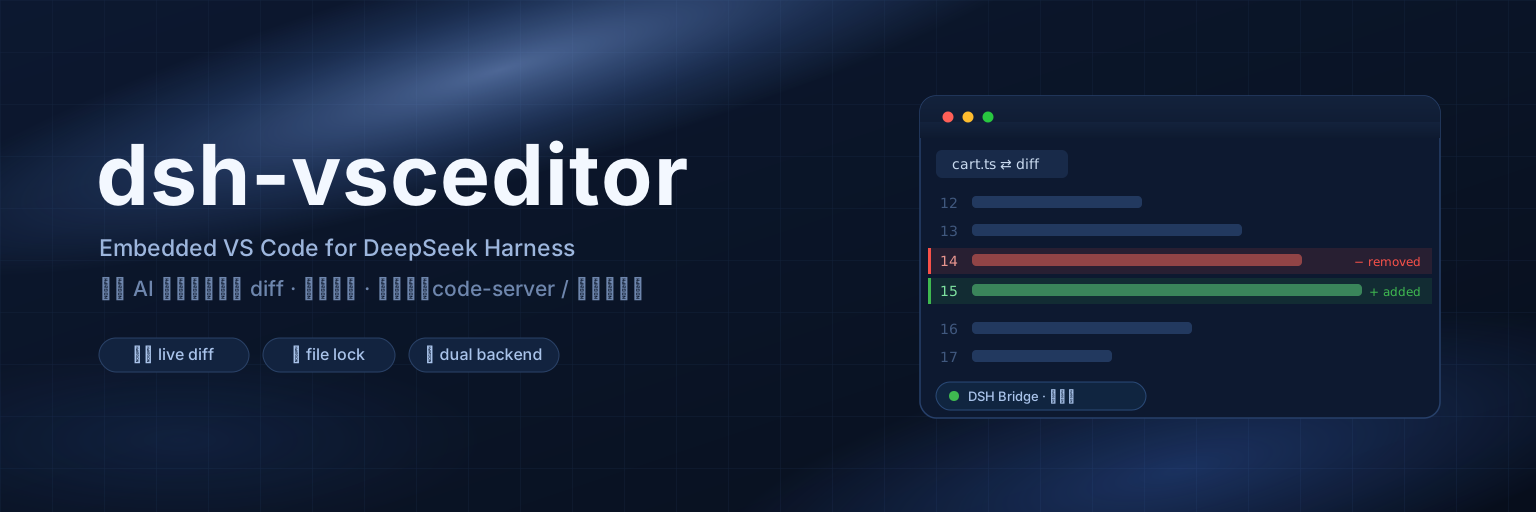
An embedded VS Code editor plugin for DeepSeek Harness — embeds a full code-server (complete VS Code) inside the DSH web UI. Every time the agent writes or edits a file, the editor pops a red/green diff and jumps to the first changed line — you literally watch the AI work.
write/edit, the editor opens a red/green diff view of that file and scrolls to the first changed line; DSH also renders its own read-only diff tab, so you can watch either side. Diffs accumulate per file for a whole conversation turn, survive tab closes and editor reloads, and are cleared only when the next turn starts editing (see 5.3)<body>; switching tabs only hides/shows it instead of starting a new VS Code session every click~/.dsh/settings.yaml)@deepseek-ai/schemastery needed┌─ DSH process ─────────────────────────────────────────────┐
│ host.js (host-plane cordis plugin, one per process) │
│ · listens to tools/pre-execute & tools/result events │
│ of every session │
│ · captures write/edit target paths, reads before/after │
│ · manages the code-server child via a watchdog process │
│ (heartbeat-suicide + orphan reaping: no leftover │
│ code-server after DSH crashes/upgrades) │
│ · exposes via webServer: │
│ /__dsh-vsceditor/state|action (control plane) │
│ /__dsh-vsceditor-<rand>/events (SSE → extension) │
│ /__dsh-vsceditor-<rand>/rpc (extension → host) │
└───────┬──────────────────────────────▲────────────────────┘
│ SSE: hello/follow/edit/lock/unlock/reveal
│ POST: ready/ack/log
┌───────▼──────────────────────────────┴────────────────────┐
│ code-server (separate process, --auth none, 127.0.0.1) │
│ └─ dsh-bridge extension (vscode-ext/dsh-bridge) │
│ edit message → opens red/green diff at the change │
│ lock → file read-only; unlock → restores │
└────────────────────────────────────────────────────────────┘
▲ iframe (client.js registers a conversation.view
tab "Editor", persistent on body across tab switches)
Message semantics follow ACP session/update: edit {path, oldText, newText, firstLine} is pushed by the host with computed diff stats; the extension renders it. The host mounts unscoped, so it sees tool events from all sessions (scoped events flow up the scope chain).
peerDependencies declares these lines, and dsh compares it against the running runtime version — a plugin outside the range is refused outright at install time. The 0.2.x line was checked against 0.2.1-alpha.1 (the build the Tauri desktop shell ships): host services, events and argument shapes all matchdocs/windows-verification-report.md). The code-server backend on Windows is experimental — code-server publishes no official Windows build (see 4.2 → Windows)Option A: from GitHub (recommended)
dsh plugin --profile web add github:k-ying/dsh-vsceditor
dsh plugin add adds the package to ~/.dsh/profiles/web/package.json dependencies and registers it in dsh.profile.bundles automatically (the plugin self-mounts via cordis.patch.yml; no manual composition edits needed).
Option B: from a local directory
git clone https://github.com/k-ying/dsh-vsceditor.git
dsh plugin --profile web add /path/to/dsh-vsceditor
⚠️ Do not skip this if you want the default embedded editor. The plugin does not ship the code-server runtime (~100MB). Without it, embedded mode is unavailable — the Editor tab will report "code-server not found" and offer to switch you to local VS Code mode (feature-equivalent, see 5.1).
Option 1: one-click install (recommended). Open the Editor tab (or Settings → Plugins → Embedded VS Code editor) and click ⬇ Install code-server in one click — a dialog shows the download URL, live progress percentage, and install/startup steps (cancellable at any time), and the editor opens automatically when done. Installs to ~/.dsh-editor, shared by all workspaces.
Option 2: global CLI install (equivalent; useful when the panel is unreachable):
sh ~/.dsh/profiles/web/node_modules/dsh-vsceditor/scripts/install-code-server.sh ~/.dsh-editor
To give one workspace its own code-server, run without arguments (installs to .dsh-editor in the current directory, which takes precedence over the global one):
cd <your DSH workspace>   # e.g. ~/Documents/AI
sh ~/.dsh/profiles/web/node_modules/dsh-vsceditor/scripts/install-code-server.sh
The script downloads the official code-server release for your platform (macOS arm64/x64, Linux x64/arm64/armhf) and extracts it. Version is pinned to 4.133.0; override with the DSH_VSCEDITOR_VERSION environment variable.
Manual install also works: extract code-server into any of these locations (in lookup order):
code-server directory field in the settings card (highest priority)$DSH_VSCEDITOR_HOME environment variable<workspace>/.dsh-editor (workspace level)~/.dsh-editor (global, recommended)The directory must contain code-server/bin/code-server.
📁 Editor runtime data (user-data, config, logs) is NOT stored in your workspace — it lives in the global
~/.dsh-editor/workspaces/<hash>-<workspace-name>/, isolated per workspace (the same model as VS Code's user-level data directory), so your project folder stays clean. Older versions used<workspace>/.dsh-editor; workspaces that already have one keep using it to preserve their data.
code-server does not publish Windows builds, and a plain npm install -g code-server is broken on Windows (both the postinstall script and argon2 native compilation fail). This plugin ships scripts/install-code-server.ps1 to work around both, with a technique inspired by naspenang/code-server-windows (MIT): skip postinstall, install dependencies manually, and borrow native modules from an installed desktop VS Code.
Prerequisites:
-CodeServerVersion to pick a matching code-server version, or -SkipVSCodeVersionCheck to force)cd <your DSH workspace>
Set-ExecutionPolicy -Scope Process Bypass
& "$env:USERPROFILE\.dsh\profiles\web\node_modules\dsh-vsceditor\scripts\install-code-server.ps1"
Layout produced (what the host looks up on Windows):
<workspace>\.dsh-editor\code-server\node\node.exe
<workspace>\.dsh-editor\code-server\runtime\node_modules\code-server\out\node\entry.js
Note: this path is not widely verified; it only guarantees local 127.0.0.1 use. If you hit problems, WSL2 runs the officially maintained Linux flow with an identical experience to macOS/Linux — a safer choice.
dsh web
An Editor tab appears in the top bar; click it and wait a few seconds for code-server to come up. The status dot next to the tab label: gray = loading or backend switched Off, green = extension connected, yellow = waiting for the extension, red = not running / code-server not installed / bridge not mounted.
Switch Editor backend to Local VS Code under Settings → Plugins → Plugin Configuration (mutually exclusive with embedded code-server, applies instantly), or click the connection wizard button on the Editor tab's status card:
.app and Spotlight, Windows standard install dirs and where, Linux /usr/bin and which); if not found, set the path manually in settings~/.vscode/extensions/ (home dir, no privileges needed); on failure it prints the manual copy source/target pathsHow: environment variables cannot be injected into an already-running desktop app, so the host writes bridge coordinates (port/token/workspace) to ~/.dsh-editor/bridge.json and the extension polls it to handshake. One extension codebase serves both modes automatically; embedded mode is unaffected.
Desktop VS Code enables Restricted Mode for newly opened folders. The plugin fully adapts to it:
untrustedWorkspaces: limited support — it activates and keeps the handshake even in untrusted windows, but executes no edit/reveal sync commandsWorkspaces: Manage Workspace Trust) and everything resumes automatically — no Reload needed (the extension listens to onDidGrantWorkspaceTrust and reconnects)--disable-workspace-trust and never has this issueRecommendation: your DSH workspaces are your own directories, so just trust them; if all sessions live under one parent (e.g. ~/Documents/AI), trusting the parent folder settles it once and for all.
Switch Editor backend to Off in the settings card, or click the power button in the editor toolbar (⏻, right of restart — in embedded mode it says "Shut down code-server", in local mode "Disconnect"). Both operate the same setting:
bridge.json is removed so the desktop extension disconnects on its next pollstartServer, and a deliberate shutdown is never misbooked as a crash (no error banner, no retry budget consumed)autoStart only controls DSH boot behavior: an Off state with autoStart=true still launches nothing; turning the backend back on from Off always starts immediately~/.dsh/settings.yaml and survives DSH restartsOn by default. After each agent write/edit lands:
DSH · follow/edit status bar button in VS Code for a menu (toggle follow / reconnect), or Command Palette → DSH Bridge: Toggle Follow Mode; the extension sends the request back to DSH and all sides syncWhen the agent starts writing a file, that file becomes read-only in the editor (status bar hint) and unlocks when the write completes. This is an anti-conflict hint, not a security boundary.
The settings live in the Settings → Plugins → "Embedded VS Code editor" tab (that slot has existed since dsh 0.1.5). Only on an older shell that lacks the slot does it fall back to the collapsible Settings → Plugins → Plugin Configuration → "Embedded VS Code editor" card (click the header to expand). Both are the same settings surface with identical keys:
| Key | Type | Default | Description |
|---|---|---|---|
editorBackend | string | embedded | Editor backend (mutually exclusive): embedded = embedded code-server; local = local desktop VS Code; off = disconnect everything (see 5.2). The toolbar power button toggles the same key |
follow | boolean | true | Follow DSH edits: pop the red/green diff and jump to the changed line |
followWorkspaceOnly | boolean | false | Follow workspace files only: out-of-workspace changes are recorded but pop no diff |
autoStart | boolean | true | Launch code-server automatically when DSH starts; when off, start it manually from the Editor tab. Only governs DSH boot: nothing launches while the backend is Off, but switching back from Off always starts immediately |
port | number | 0 | code-server listen port; 0 = random (10000–65000); changing it restarts the editor |
codeServerHome | string | "" | Manually specify the code-server install directory; empty = auto-lookup in the order above |
vscodePath | string | "" | Manually specify the local VS Code path (code CLI or .app/Code.exe); empty = auto-detect |
language | string | auto | UI language: auto = follow the DSH UI language (falls back to browser language); pt-BR/es are never auto-detected because DSH itself only ships zh/en — pick them explicitly here |
trustedHosts | string | "" | Comma separated bare authorities (host or host:port) allowed to reach the control routes in addition to loopback. Needed when you reach DSH through a reverse proxy or custom domain; empty = loopback only. See 8 |
bridgeDebug | boolean | false | Append the extension's diff-open trace to /tmp/dsh-bridge-debug.log. Pushed to the extension over SSE, so it takes effect immediately without restarting DSH or the editor; use it when a diff does not show up |
Writes persist and survive restarts; where they land depends on the dsh generation: on 0.1.x they go through the plugin's settings namespace (user layer), on 0.2.x into that profile's cordis.patch.yml — updating config: on the existing - id: vsceditor row, or appending one when there is none (a top-level row with the same id overrides the composition row; it does not mount the plugin twice). You can also set config: on the plugin row up front as a composition-level base (the user layer overrides it).
Upgrading from 0.1.x? Your settings used to live in the
dsh-vsceditorsection of~/.dsh/settings.yaml. The one-time migration in dsh 0.2.x matches a section to a plugin entry by section name, and ours differ (sectiondsh-vsceditor, entry idvsceditor), so those values are not carried over — the plugin starts on its defaults. Nothing was deleted: dsh simply renamed the file to~/.dsh/settings.yaml.imported. Either fix works:
Re-pick them in the settings card (there are only a handful of fields, so this is quickest); or
copy the
dsh-vsceditor:section from.importedinto the row shown above:- id: vsceditor name: dsh-vsceditor config: editorBackend: local vscodePath: /Applications/Visual Studio Code.appthen restart dsh.
In the VS Code command palette (Cmd/Ctrl+Shift+P):
DSH Bridge: Toggle Follow Mode — toggle follow mode (or click the DSH status bar button, which offers a menu with the switch)DSH Bridge: Reconnect — reconnect the bridge manually (rarely needed — the extension reconnects on its own)The Editor tab shows "code-server not installed" / "code-server not found"
code-server is not installed or not on the lookup path. Two options: ① run the install script in 4.2 (or fill in the code-server directory in the settings card); ② if you don't want it, click the Use local VS Code → button on the page — the plugin switches to local mode and opens the connection wizard.
Local mode stuck at "waiting for workspace trust" (yellow dot)
VS Code Restricted Mode is blocking edit sync. Trust the workspace in VS Code (Command Palette → Workspaces: Manage Workspace Trust); it resumes automatically without Reload. See the "Workspace Trust" subsection of 5.1.
Stuck at "waiting for extension" (yellow dot) The extension host only starts while a code-server window is open. Click into the Editor tab and wait a few seconds; if the page is stale (code-server restarted), refresh the whole DSH page.
Edits don't pop diffs
① Is the tab status dot green? ② Is Follow checked in the toolbar? ③ Extension logs: restart DSH with DSH_BRIDGE_DEBUG=1 and read /tmp/dsh-bridge-debug.log (local mode: ~/.dsh-editor/bridge-ext.log).
Port taken / want a different port Change the port in the settings card; the editor restarts onto the new port after saving.
Editor tab says the bridge is unmounted / settings card buttons do nothing (403)
You are reaching DSH through a host the control fence does not trust — a reverse proxy, a custom domain, Tailscale MagicDNS, ngrok, and so on. Declare that hostname in Trusted hosts (Settings → Plugin config) or in the dsh-vsceditor section of ~/.dsh/settings.yaml. While it is fenced the settings card cannot save either, so edit the file (or the plugin row's config:) in that case. Loopback access (http://127.0.0.1:<port>), localhost, and the machine's own LAN address keep working with no configuration — see 8.
Leftover code-server processes
Since 0.5.0 this should not happen: code-server runs under a supervisor (lib/cs-supervisor.js) that kills the whole editor process tree when the DSH host dies, and a reaper sweeps orphaned leftovers (PPID=1, matched against this plugin's own install signature) at startup, again 30s later, and every 30 min. If you still see leftovers, please file an issue. Manual cleanup: pkill -f 'code-server.*--auth none'.
The editor restarted by itself / error mentions cs-supervisor: host unreachable
The watchdog lost its heartbeat to the DSH host for ~60s (e.g. the host event loop was stalled) and shut code-server down as a precaution. The host notices the exit and relaunches the editor within ~2s, so it heals on its own; if it repeats frequently, file an issue.
Settings → Plugins → Plugin Configuration renders blank
A pitfall from this plugin's 0.1.x era: a settings schema missing toJSON takes down the whole tab. Fixed in 0.2.0; if it still happens, file an issue with the dsh-vsceditor section of ~/.dsh/settings.yaml attached.
dsh plugin --profile web remove dsh-vsceditor
Optionally remove runtime data: ~/.dsh-editor (including per-workspace runtime data under workspaces/; legacy installs may also have <workspace>/.dsh-editor), ~/.vscode/extensions/dsh.dsh-bridge, and the dsh-vsceditor section of ~/.dsh/settings.yaml.
/state, /action): the Host must be loopback, the address the request actually arrived on, or a host you declared in Trusted hosts; sec-fetch-site: cross-site is rejected; Origin must match Host when present; and state-changing POSTs must carry an Origin at all (browsers always send one, blind local scripts do not). set-config additionally accepts only known config keysHost and Origin are both forgeable — the socket address is the only honest signal — so without that rule a local process (or a LAN peer on a LAN-bound DSH) could simply claim Host: 127.0.0.1 and drive the control plane. Same-machine access through your machine's own LAN address or hostname still works, because the loopback socket proves the client is localconfig:, or directly in the dsh-vsceditor section of ~/.dsh/settings.yaml. Until it is declared the control routes answer 403 and the Editor tab reports the bridge as unmounted — and the settings card cannot save in that state either, so edit the file. The plugin also inherits DSH's own trustedHosts (the connection service), so a host already declared for the deployment does not need declaring twic侧边栏多列任务看板:卡片交给真实 DSH 智能体会话执行,支持 cron 定时(Host 侧到点执行,关浏览器也生效)。
DSH Web UI 插件与皮肤合集:任务看板、git 图、右侧面板、远程移动端 UI、桌宠、实时 token 统计与皮肤中心。
助手回复内渲染交互式 UI 组件:布局、图表、表单、测验、mermaid、3D 场景与回传事件循环。