

dsh-web
zhu1090093659/dsh-webDeepSeek Harness(DSH)Web 插件聚合生态包 · 一切皆插件,创意工坊分发(dsh-market.com)

Your coding agent, with every change in view.
Bring DeepSeek Harness (DSH) into VS Code: work with your code, review native diffs, and follow each task with built-in Trace and usage insights.
English | 简体中文
Install for VS Code · Open VSX · Download VSIX · Changelog
An independent community project. Issues welcome.
For JetBrains IDEs (IDEA, PyCharm, etc.), please see dsh-intellij-integration.

Ready for dsh 0.2.0-rc.2 | The default Runtime and Remote contract target dsh-v0.2.0-rc.2. Session management, DeepSeek account sign-in and balance, default DSH Workspace initialization, and late answers to timed questions remain supported. Schedule is an optional official bundle in this release and the dock explains how to enable it when absent. Desktop-only product analytics RPCs are not used by the IDE. Any Runtime at or above 0.1.5-rc.1 still connects. |
| Laya / Jev built in | The IDE-neutral dsh-jev-integration Runtime plugin ships inside the extension. Add fast System One decisions from TypeSafe Jev, or its wire-compatible open-source alternative Laya, to the agent loop: loop guard, large-output shaping, done-gate, tool pruning, skill routing, and decision tools. Nothing extra to install. |
| Works out of the box | Install the extension and the official DeepSeek Desktop app. The Desktop app registers the dsh command; the extension finds it, connects to its Web Runtime, and guides you to the download page when it is unavailable. The only setup left is your API key. |
Requires VS Code 1.106.0 or later and a configured DSH model provider with credentials.
harcochen.dsh-vsc-integration in Extensions.DSH: Open Chat. The Desktop app registers dsh; if the command is unavailable, the extension offers the official download page.DSH: Configure API Key for DeepSeek credentials. For other providers, use DSH: Open dsh Web UI in Browser. Select or register a DSH Workspace, then choose a model.@ to reference a file, or right-click a selection for DSH actions. Follow the task, respond to approval requests, and open diffs from tool cards to review the result.dsh.jev.enabled and the features you want, run DSH: Configure Jev API Key, then accept the Runtime restart. See Laya / Jev System One decisions.A DSH Workspace groups sessions in Harness and can be associated with a project path. When using the same Runtime, you can continue sessions created in the Web UI.
| Your task | A place to start |
|---|---|
| Understand unfamiliar code | Select code and use the DSH explain action: “Walk through the execution flow and edge cases.” |
| Review a change | Use the DSH review action on a Git diff in Source Control: “Check these changes for regressions and point to the relevant lines.” |
| Investigate a breakpoint | While paused, run DSH: Explain Current Debug State to attach context including the call stack and local variables. |
| Continue earlier work | Switch to a previous session and use the conversation outline to revisit the discussion. |
After a write/edit tool call, open the target file to see VS Code's native side-by-side diff. The before-image is reconstructed by replaying hunks backwards from the Session log, so it also works in non-Git repositories and Git-ignored files.
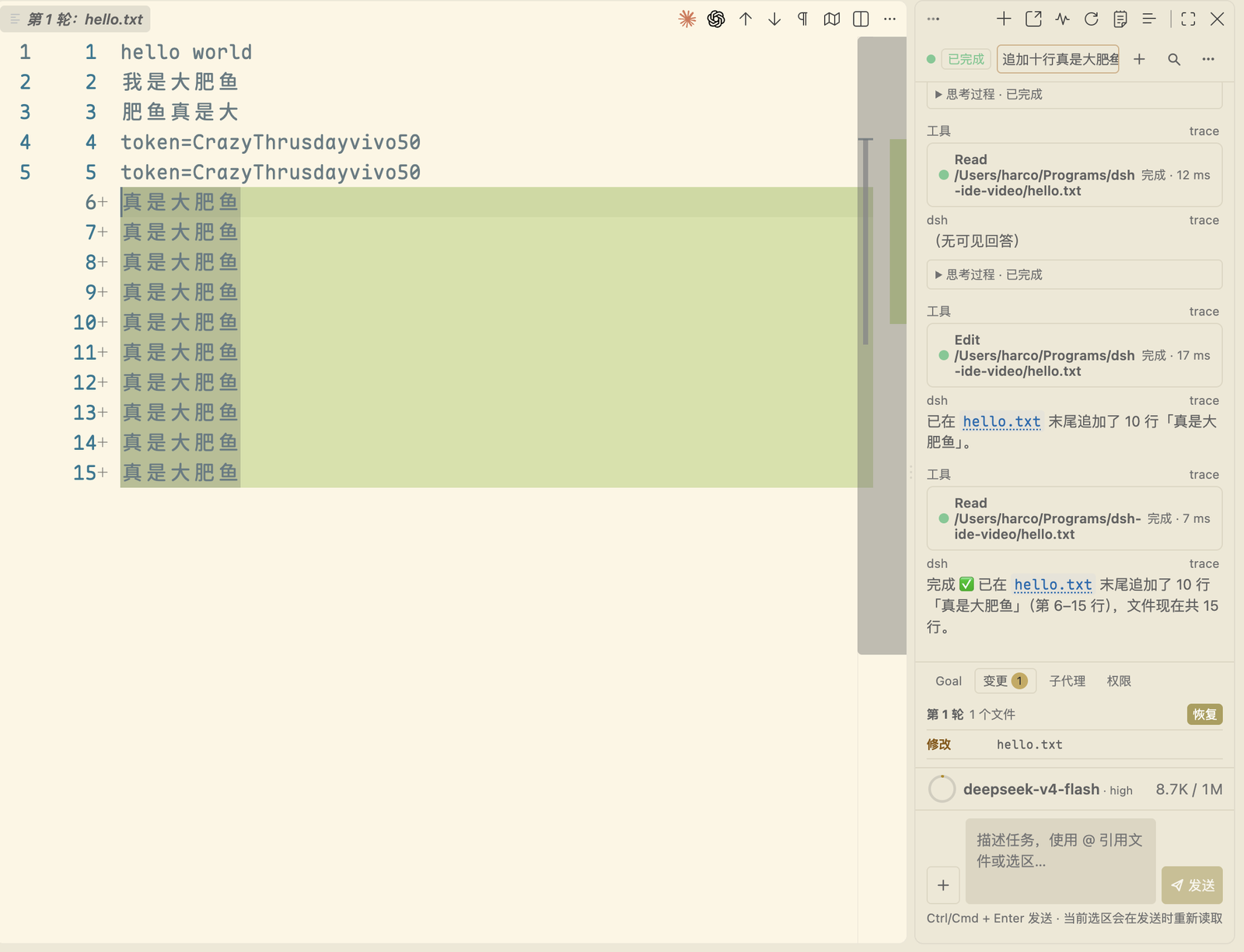
The approval card shows the actual command line, working directory, and target files that will be written. For supported file-writing tools, open a native diff of the proposed change before approving it.
A write whose target file still has unsaved editor changes is not released: approval is refused, the card names the files and stays pending, and you can save or revert them and approve again.
Jev is TypeSafe's System One decision model. It does not generate text. It reads an agent state and returns calibrated, typed answers in milliseconds. Laya is an Apache-2.0 open-weights alternative that serves the same POST /v1/systemone request and response shape. The extension bundles the dsh-jev-integration Runtime plugin (shared with the JetBrains plugin) and mounts it into every Runtime it starts. You do not install a separate plugin or edit your DSH profile.
| Feature | Setting | What it does |
|---|---|---|
| Loop guard | dsh.jev.loopGuard.enabled | Detects semantic loops after tool execution and steers the agent out. |
| Result shaper | dsh.jev.resultShaper.enabled | Classifies and folds repetitive large tool output, and keeps warnings and failures. |
| Done gate | dsh.jev.doneGate.enabled | Checks completion claims against tool evidence and can request one more verification turn. |
| Tool pruner | dsh.jev.toolPruner.enabled | Ranks model-visible tool schemas. DSH permissions and tool registration are unchanged. |
| Skill router | dsh.jev.skillRouter.enabled | Selects relevant skills and adds bounded advice to the context. |
| Decision tools | dsh.jev.decisionTools.enabled | Exposes jev_ask, jev_rank, and jev_check tools to the agent. |
| Deterministic safety guard | dsh.jev.deterministicSafetyGuard.enabled | Runs local checks for destructive commands, privilege escalation, and credential exposure. Inspected data stays local. |
Use Jev: enable dsh.jev.enabled plus the features you want, run DSH: Configure Jev API Key, and restart the Runtime when prompted. The key is encrypted in VS Code SecretStorage.
Use Laya: point dsh.jev.baseUrl at an HTTPS endpoint that serves the Laya System One API, set dsh.jev.model to the model name that server expects, and configure an API key. If your server ignores the key, any placeholder value works. The extension accepts only https:// endpoints and falls back to the TypeSafe default for anything else.
Everything is off by default. Enabled features may send the samples they need to the configured endpoint. Existing or externally managed Runtimes are never modified.
DSH: Manage Sessions pins sessions and restores archived ones. DSH: Archive Session asks whether to stop a running task before it archives the session. DSH Workspaces also work without an open VS Code folder.DSH: Manage DeepSeek Account signs in through the browser, signs out, and shows the account profile and balance.DSH: Browse Runtime Workspace Files (also under /ide) lists files in the current DSH Session's workspace and opens read-only UTF-8 previews up to 1 MiB. Open previews refresh on Runtime file changes; DSH: Refresh Runtime File Preview also works when watching is unavailable.@ menu to select diagnostics for the next message. Typing @diagnostics attaches the current file's diagnostics. Attachments include locations, sources and codes, retain size/truncation limits, and are not sent automatically.The slash menu dynamically fetches commands registered by the Runtime for the current session (/plan, /compact, /goal, etc.) and merges them with the extension's own IDE commands.
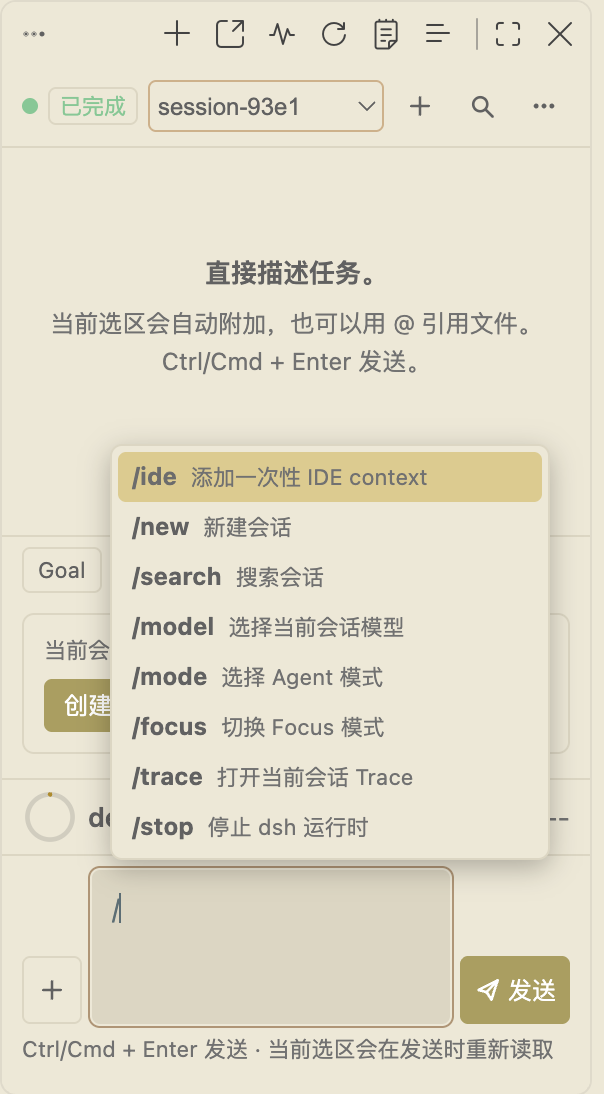
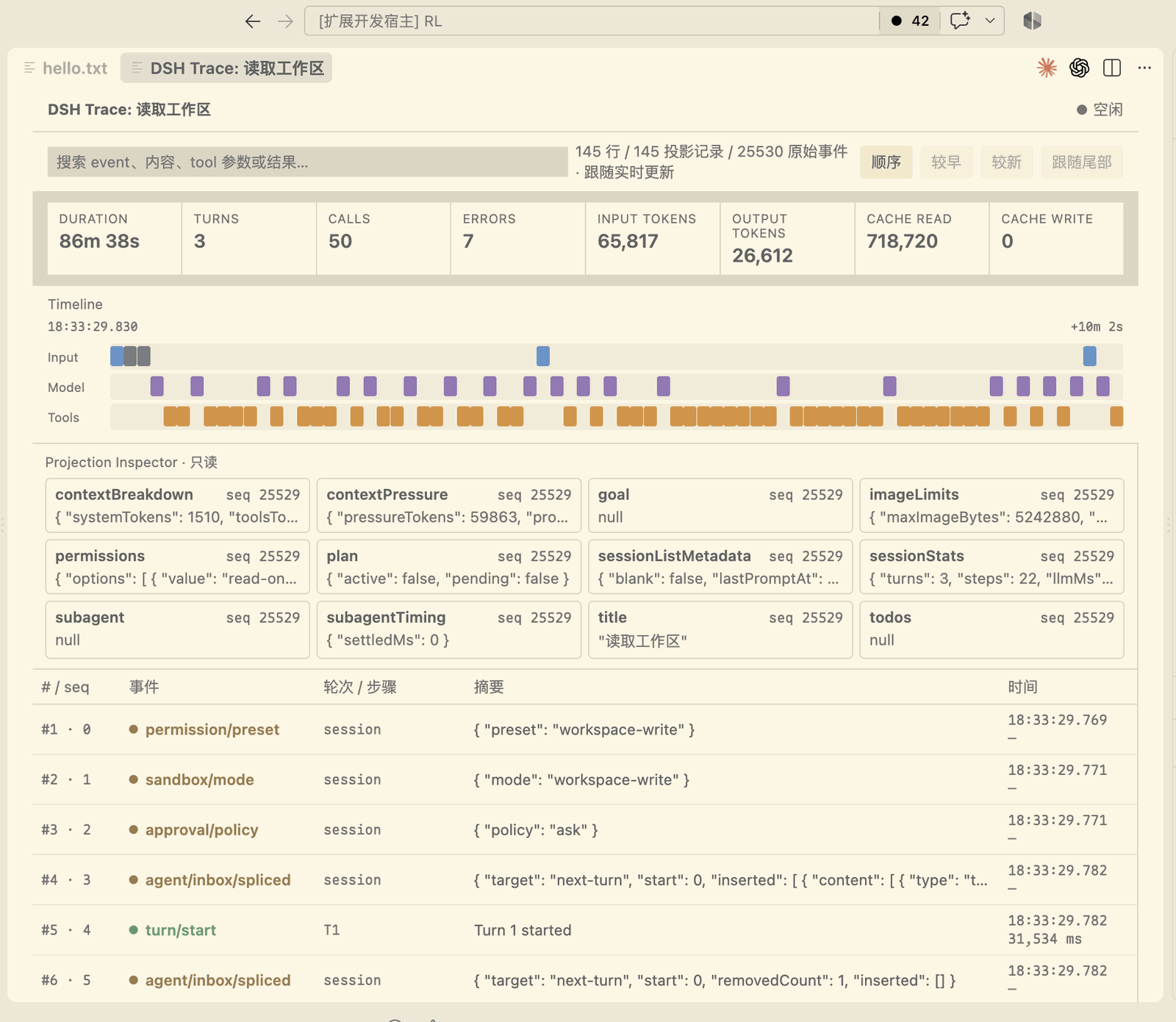
Ask about resource in Explorer to ask about a file or folder.@ menu autocompletes project files and previous Sessions.DSH: Capture AppShot (macOS only) captures a window screenshot and inserts it into the conversation as a draft.The sidebar provides a native conversation-outline TreeView. Trace, token usage, Todo lists, and subagents are gathered in the Activity panel. The UI supports VS Code's dark and light themes.
DSH: Open Chat in Editor Tab mirrors the same conversation in an editor tab, so the chat can sit next to the file you are editing. Both surfaces show one session and one stream — switching between them does not restart or fork anything.
With dsh.autonomousDebugging enabled, the extension exposes a loopback MCP endpoint inside
this window and the agent can drive the VS Code debugger: debug_start launches a launch
configuration that already exists in the workspace, debug_breakpoint adds, removes and lists
breakpoints, debug_control continues, steps and waits for the next pause, and debug_context
reads the paused stack, variables and source. Variables whose names look like secrets are
replaced with [redacted by dsh-ide] before they leave the window. The endpoint binds
127.0.0.1 only, checks the Host header and a per-launch token, and never lets the model
invent a launch configuration. It applies to a Runtime this window starts; switching the setting
needs a Runtime restart, which the extension offers when you change it.
The bottom bar shows your current balance, including peak and off-peak pricing. Low balances are highlighted clearly.

Do I need to install DSH manually? Install the official DeepSeek Desktop app. It registers the dsh command used by the extension. If the command cannot be found, the extension offers the official download page. Standalone managed Runtime downloads are deprecated.
How is Laya/Jev integrated? The extension package carries the IDE-neutral dsh-jev-integration Runtime package and mounts it only into a Runtime started by this extension; existing or externally managed Runtimes are not modified. Laya is supported through the same System One contract by changing dsh.jev.baseUrl (HTTPS only). Jev is disabled by default. dsh.jev.enabled is the master switch; individual switches enable loop guard, result shaping, completion evidence checks, tool pruning, skill routing, decision tools and local deterministic safety checks. The endpoint and model are configurable, while numeric thresholds use built-in defaults. Configure the API key with DSH: Configure Jev API Key; it is encrypted in VS Code SecretStorage, with TYPESAFE_API_KEY and $HOME/.dsh/.env available as fallbacks. Enabled features may send their required samples to TypeSafe System One. Changes require a Runtime restart. This build exposes the shared Runtime subset of upstream dsh-jev, not its full agent-loop, dashboard, browser, or mobile bundle.
Can I connect to an existing Runtime? Yes. Set dsh.serverUrl to your running dsh web address and set dsh.serverToken to its launch token when the token is not already in the URL. This extension accepts valid SemVer versions at or above dsh 0.1.5-rc.1, including newer prereleases and stable versions. The default download and approved upgrade target is 0.2.0-rc.2; a compatible local installation is reused without downgrading. The extension reads session history through the public Remote page/follow APIs. Session log storage and migration are owned by the Runtime.
Custom bind addresses and HTTPS: set dsh.serverUrl to an existing Runtime's address to connect directly and avoid starting a second process on the same port. For example:
{
  "dsh.serverUrl": "https://[::1]:3080",
  "dsh.serverToken": "<token printed by the Runtime>"
}
IPv4 also works, for example http://100.64.0.1:3080 when that IP belongs to the extension host machine. Remote hosts require HTTPS. Certificates must be trusted by the extension host; certificate verification is never disabled. Bracket IPv6 addresses. Automatic discovery probes local IPv4/IPv6 interfaces, but authentication tokens for unregistered instances still need the settings above.
The implemented Runtime contract targets dsh-v0.2.0-rc.2 (639ed015397290b3745d163aafe02ffee4aa3f84). The RC.2 adaptation report records integration results and remaining checks. Runtime workspace files have a read-only browser, permission presets use the process catalog, and Settings supports plugin enablement and Bundle selection, including read-only reasons and saved/applied/restart-required feedback. Schedule requires the optional official bundle. Jobs streams live output, resumes by byte cursor after reconnect, and supports cancellation. Timed questions claim foreground waits and restore answer drafts after reconnect or webview recreation. The Team panel shows members and tasks from the agentTeam projection, with addressed member history and task filtering. Runtime terminal input, resizing and screen recovery, plus plugin installation/removal, are available on the development branch. Desktop product analytics RPCs remain unused by the IDE.
The default dsh.command: "auto" probes dsh --version on PATH and in the npm global prefix. A compatible command registered by DeepSeek Desktop is used directly. An incompatible local CLI gets an upgrade prompt; approval upgrades only a verified older npm global installation. When no compatible command is available, the extension guides you to install DeepSeek Desktop. Diagnostics never install or download a standalone Runtime. Explicit local paths follow the same compatibility check; explicit pnpm/npx remains available for advanced users.
Default app arguments are web --no-open; explicit pnpm/npx gets its required prefix automatically when no argument override is saved. Existing package-manager argument overrides are preserved. Auto mode selects a compatible local or Desktop-registered dsh command and does not start a second standalone Runtime.
Standalone CNB Runtime downloads are deprecated. Install the official Desktop app from the DeepSeek download page when dsh is unavailable. After compilation, node scripts/verify-runtime-discovery.mjs checks local command selection and startup arguments without model requests.
Does DSH support multi-root workspaces? DSH supports multiple independent Workspaces, but each Session has one working directory (cwd). A VS Code multi-root workspace is therefore represented by the first workspace folder for Runtime startup; use separate DSH Workspaces or Sessions when roots need different working directories.
Does DSH automatically identify secrets or personal information? No. Context is based on files, selections, and attachments that you explicitly choose; DSH reports size/truncation but does not send workspace content to an additional secret/PII classifier.
What if startup fails? Run DSH: Diagnose Environment, then DSH: Show dsh Runtime Logs from the Command Palette. Include your extension version, OS, and redacted error details when opening an issue.
If startup reports error: unknown option '--no-open' even though dsh web --help lists that option, check $DSH_HOME/profiles/web/package.json (by default, ~/.dsh/profiles/web/package.json). A dsh.profile.bundles list containing both @deepseek-ai/dsh-web-app and @deepseek-ai/dsh-headless mounts two app parsers: Web accepts the flag, then headless rejects it. Back up the file, remove the headless bundle from the Web profile, and restart the Runtime. Use a separate headless profile for one-shot CLI tasks.
Does it support Chinese? Yes. Commands, chat, Activity, and Trace follow VS Code's display language, with English and Simplified Chinese available.
The extension connects to the Runtime through RC Remote RPC, using HTTP calls and a multiplexed WebSocket for live session updates.
Multiple VS Code windows discover each other through Runtime advertisements, then fall back to port 3080 and any configured dsh.serverPort. Every candidate is health-checked before use: authentication and a successful session/list call establish a usable connection, and advertised versions below the minimum are excluded. External services remain externally owned and are not stopped on disconnect. If authentication credentials are missing, set dsh.serverUrl to the full launch URL, including its token.
Advertisements are discovery metadata only. No advertisement grants or denies permission to start, so a missing, stale, or unreadable one can never block startup — the worst case is one failed health probe followed by this window launching its own Runtime.
Each window publishes exactly one file, <ownerId>.json, under dsh-runtime-advertisements-<user> in the OS temporary directory, carrying its endpoint, launch URL, version, PIDs, and composition hash. A window writes only its own file and never reclaims another's; legacy dsh-runtime.lock files are still read as hints, never written or removed. Readers take the sixteen most recent entries, so an abandoned file cannot crowd out live ones.
Advertisement lifecycle:
--host 127.0.0.1 and, without dsh.serverPort, to an OS-assigned port. A pinned port that loses a bind race retries once on an OS-assigned port.taskkill /T while the root identity is known.After npm run compile, run node scripts/verify-runtime-discovery.mjs and node scripts/verify-runtime-shutdown.mjs to check launcher/port selection, advertisements, upgrade confirmation, and shutdown using isolated temporary directories, child processes, and loopback listeners.
graph TD
    A[VS Code Extension Host] <-->|RC Remote RPC| B[Standalone Harness Runtime]
    A <-->|Typed Full-State Bridge| C[React Webview UI]
    B <-->|Official Desktop dsh command| D[DeepSeek Desktop]
    A <-->|Process Lock| E[Multi-Window Shared Runtime]
Search dsh in VS Code settin
DeepSeek Harness(DSH)Web 插件聚合生态包 · 一切皆插件,创意工坊分发(dsh-market.com)
把回答做成一页可视化 HTML:模型只写简短的 Markdown 草稿,随包附带的 `am` 命令行生成页面,支持流程图、时序图、树、时间线、ER 图、表格和提示框。
在 dsh 里装上这个插件即可,无需登录、注册或填 API Key,就能使用包括 Muse Spark 1.3、MiMo V2.6 在内的前沿模型——完全免费,不限量。 All you do is install this plugin in dsh: no login, no sign-up, no API key — the frontier models are just there, Muse Spark 1.3 and MiMo V2.6 among them. Completely free, with no usage cap.

